
Managing Microsoft 365 and Intune with an AI Assistant: Introducing MCP M365 Management

If you spend any part of your week clicking through the Entra admin center or the Intune portal to check a device's compliance status, list a group's members, or spin up a new user, you already know the drill: it's rarely hard, it's just slow, and it's the kind of task that's perfect for delegating to an AI assistant — if that assistant actually had a way to talk to Microsoft Graph.
That's what MCP M365 Management is for. It's a Model Context Protocol server that gives any MCP-compatible AI client — Claude Desktop, VS Code, or your own agent — 33 tools for managing Microsoft Entra ID, Intune, SharePoint, OneDrive, and more, backed directly by the Microsoft Graph API.
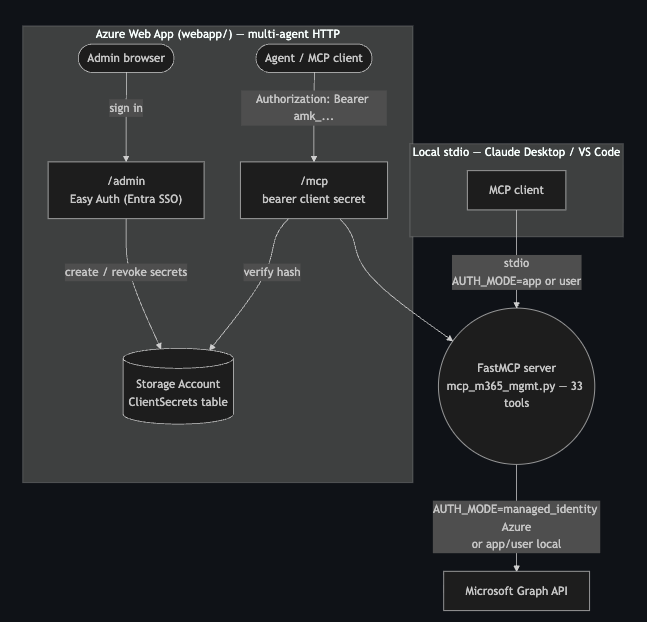
If you like architecture diagrams more than paragraphs, there's a full one (Mermaid, renders natively on GitHub) in the repo's README
Credit where it's due: this project is built on the original MCP M365 Management server created by Thiago Beier. His work is what got the 33 Graph-backed tools to a working stdio server in the first place — everything described below on hosting it for a team of agents is what we built on top of that foundation.
What it can actually do
The tool surface breaks down into six areas:
- Users & groups — create users, look up group membership, pull group and user details straight from Entra ID.
- Intune device management — list managed devices, compliance policies, configuration policies, assignment filters, PowerShell/shell scripts, and installed apps.
- Windows Autopilot — deployment profiles, registered devices, and Enrollment Status Page profiles.
- Mobile device management — Android and iOS management profiles, plus app protection (MAM) policies.
- Infrastructure & connectivity — Microsoft Tunnel Gateway sites and servers, AD connectors for hybrid join, NDES certificate connectors.
- Files & documents — create and read files in SharePoint and OneDrive, generate Word, Excel, PowerPoint, CSV, and OpenDocument files on the fly, and convert Office documents to PDF.
That last category is more useful than it sounds: ask your assistant to pull a device compliance report and it can write the results straight into a formatted Excel workbook in the right SharePoint site, in one step.
Two ways to run it
The project supports two completely different usage patterns, and which one you want depends on who's using it.
Local, for one person. Install it from PyPI (pip install mcp-m365-mgmt) or clone the repo, point Claude Desktop or VS Code at it over stdio, and authenticate either as a service principal (AUTH_MODE=app) or interactively as yourself (AUTH_MODE=user). This is the simplest path and the one most people should start with.
Hosted on Azure, for a team of agents. This is the part I've spent the last while building out: the same tool server, but running as an Azure Web App that multiple agents can connect to at once over HTTP, each with its own revocable API key.
What's under the hood of the deployment
The hosted mode has two genuinely separate authentication surfaces, and keeping them separate was a deliberate design choice rather than an afterthought.
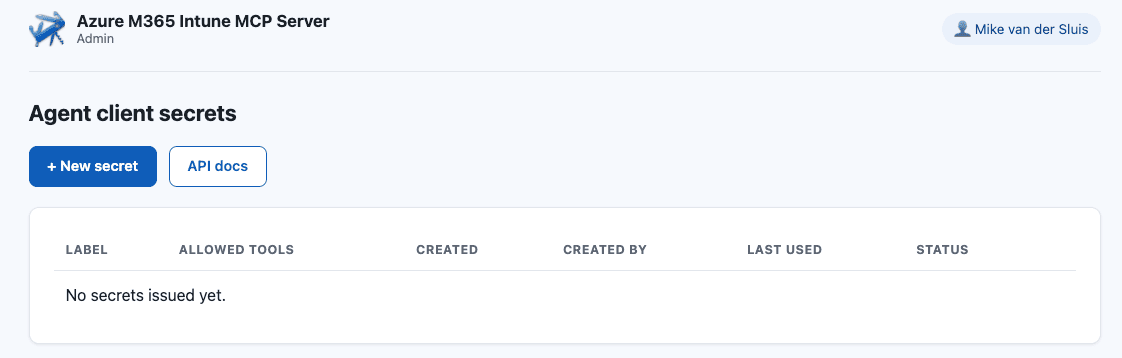
Admins sign in through Entra ID via Azure App Service's built-in Easy Auth, land on a small web UI, and from there can issue and revoke client secrets for individual agents. Each secret can be left unrestricted or scoped down to a specific subset of the 33 tools — so a reporting bot can get list_intune_devices and nothing else, while a full helpdesk agent gets broader access.

Agents never touch Entra sign-in at all. They authenticate to the /mcp endpoint with a bearer token (amk_<key>.<secret>), which the server verifies against a salted, HMAC-hashed record in Azure Table Storage — the plaintext secret is shown to the admin exactly once, at creation time, and never stored anywhere.
The Web App itself talks to Microsoft Graph using its own system-assigned managed identity — no client secret sitting in an app setting, no credential to rotate. And the whole thing is provisioned with Bicep and deployed through GitHub Actions using OIDC federated credentials, so there isn't a single long-lived Azure credential stored in GitHub either.
How admin access works
Site-admin status isn't a toggle inside the app — it's determined entirely upstream, through Entra ID app roles and Azure App Service's Easy Auth.
- Entra ID app registration. A dedicated app registration (
mcpm365-admin-sso) defines an app role literally namedAdmin. - Assignment required. The service principal has
appRoleAssignmentRequired=true, so only users explicitly assigned to the app can sign in at all. - Role assignment. Making someone an admin means assigning them the
Adminapp role on that registration — done once via a Graph API call during bootstrap, and afterwards through Entra ID (Enterprise Applications → Users and groups). There is no user-management screen in the admin UI itself. - Easy Auth injects identity. Azure App Service's Easy Auth validates the Entra sign-in and injects an
X-MS-CLIENT-PRINCIPALheader containing the user's role claims. The app never talks to Entra directly. - The app just checks the claim. The
/admin/*routes decode that header and check whetherAdmin(configurable via theADMIN_APP_ROLE_NAMEenvironment variable) appears in the role claims:- No session → redirected to login
- Session but missing the
Adminrole claim →403 Forbidden - Session with the
Adminrole claim → access granted
In short: admin rights are managed in Entra ID, not in the app — the app is just a claim checker for a role that Entra ID's Easy Auth hands over on every request.
The part that actually took the longest
Getting the plumbing right — Bicep templates, managed identity, Table Storage RBAC, the GitHub Actions pipeline — went smoothly. What didn't go smoothly, and what I'd genuinely recommend reading about if you're setting up Easy Auth yourself, was getting admin sign-in to actually work.
Three separate, unrelated misconfigurations each produced the exact same symptom: sign in with Entra successfully, get redirected to /.auth/login/aad/callback, and land on a generic "HTTP ERROR 401" page. In order, the actual causes were:
- Wrong token audience. I'd set
allowedAudiencestoapi://<clientId>, which is the right value for an access token scoped to a custom API — but a plain OIDC sign-in issues an ID token audienced to the client ID itself, noapi://prefix. - No client secret. Easy Auth v2's AAD provider defaults to the confidential-client authorization code flow, which needs a client secret to exchange the auth code for a token server-side. I'd never generated one.
- ID token issuance disabled. Easy Auth actually requests a hybrid flow (
response_type=code+id_token), and Entra won't issue the ID token half of that response unlessenableIdTokenIssuanceis turned on for the app registration — a setting that isn't on by default and isn't somethingaz ad app creategives you for free.
Each one required checking a different layer — Bicep config, App Service app settings, and the Entra app registration itself — before the picture came together. All three are now baked into the Bicep source and the bootstrap documentation, so nobody else running through this setup should have to rediscover them one 401 at a time.
Network-layer restrictions
The current deployment relies entirely on identity-based access control — Easy Auth on /admin, bearer-secret middleware on /mcp, and RBAC-only, key-less access to the Storage account — with no network-layer restrictions in front of either service.
That's a reasonable baseline, but it leaves both the Web App and the Storage account reachable from the public internet, relying on auth alone to keep out unwanted traffic.
For a production deployment, consider tightening the network boundary as a second layer of defense: put the Web App behind VNet integration with a private endpoint to the Storage account (eliminating its public endpoint entirely via publicNetworkAccess: 'Disabled' and networkAcls.defaultAction: 'Deny'), and restrict inbound traffic to the App Service itself with IP-based access restrictions or a front door/App Gateway if it doesn't need to be broadly internet-facing.
This doesn't change the app's threat model so much as it removes the option for a misconfigured or compromised credential to reach the storage plane directly over the public internet — the kind of gap that identity controls alone don't close.
Locking down network access
Right now both the Web App and Storage account are reachable over their public endpoints, protected only by identity checks (Easy Auth, bearer secrets, RBAC). Adding network-layer restrictions gives defense in depth on top of that.
1. Restrict the Web App's public endpoint
App Service supports IP-based access restrictions without any additional networking resources. At minimum, scope inbound traffic to known ranges (your office/VPN egress IPs, or an Azure Front Door/Application Gateway in front of it):
resource webApp 'Microsoft.Web/sites@2023-01-01' = {
  // ...
  properties: {
    siteConfig: {
      ipSecurityRestrictions: [
        {
          ipAddress: '203.0.113.0/24'
          action: 'Allow'
          priority: 100
          name: 'AllowCorpNetwork'
        }
      ]
      ipSecurityRestrictionsDefaultAction: 'Deny'
    }
  }
}
If the admin UI and MCP endpoint only ever need to be reached from a known set of clients (agents, admins on a VPN), this alone closes off the biggest exposure — random internet scanning/credential-stuffing attempts never reach the app layer at all.
2. Move the Storage account off the public internet
The storage account currently has no networkAcls, so it's reachable publicly (RBAC-gated, but still addressable). Two changes close that:
resource storageAccount 'Microsoft.Storage/storageAccounts@2023-01-01' = {
  // ...
  properties: {
    publicNetworkAccess: 'Disabled'
    networkAcls: {
      defaultAction: 'Deny'
      bypass: 'AzureServices'
    }
    // ...existing properties (minimumTlsVersion, allowSharedKeyAccess: false, etc.)
  }
}
With publicNetworkAccess: 'Disabled', the storage account can only be reached via a private endpoint — there's no public IP path left, even for a leaked key (moot here since shared-key access is already off) or a misconfigured RBAC grant reaching it from an unexpected network.
3. Add VNet integration + a private endpoint
To let the Web App still reach the now-private storage account, wire the two together over a VNet:
VNet integration on the Web App (virtualNetworkSubnetId on the site config) routes its outbound traffic into your VNet instead of the public internet. A private endpoint on the storage account, in a subnet of that same VNet, gives it a private IP reachable only from inside the VNet. A private DNS zone (privatelink.table.core.windows.net) linked to the VNet ensures the existing TableServiceClient endpoint resolves to the private IP instead of the public one — no code changes required, since the app already talks to Storage by hostname via managed identity.
resource webApp 'Microsoft.Web/sites@2023-01-01' = {
  // ...
  properties: {
    virtualNetworkSubnetId: appSubnet.id
    siteConfig: {
      vnetRouteAllEnabled: true
    }
  }
}

resource privateEndpoint 'Microsoft.Network/privateEndpoints@2023-05-01' = {
  name: 'pe-storage-table'
  location: location
  properties: {
    subnet: { id: peSubnet.id }
    privateLinkServiceConnections: [
      {
        name: 'storage-table-connection'
        properties: {
          privateLinkServiceId: storageAccount.id
          groupIds: ['table']
        }
      }
    ]
  }
}
Net effect
Web App: only reachable from allow-listed networks, instead of the whole internet. Storage account: no public endpoint at all — reachable only from inside the VNet, over a private IP, via managed identity + RBAC as before. Auth stays the same: Easy Auth and the bearer-secret middleware are unaffected — this is purely an additional network boundary, not a replacement for the existing identity checks. The trade-off is operational: VNet integration, subnets, and private DNS zones add infrastructure to provision and reason about, and local/CI access to the storage account (e.g., for the bootstrap scripts) would need a path into the VNet (VPN, bastion, or a temporary firewall rule) rather than working over the public endpoint as it does today.
Try it
- Local:
pip install mcp-m365-mgmt, setAUTH_MODE=appwith a service principal (orAUTH_MODE=userfor interactive sign-in), and point your MCP client at it. - Hosted: clone the repo, follow
infra/bootstrap/README.mdfor the one-time Entra/GitHub setup, and push tomain— the Bicep + GitHub Actions pipeline does the rest.
The full source, including the Bicep templates, GitHub Actions workflows, and the admin UI, is on GitHub at mybesttools/mcp-m365-mgmt.